
 OpenMV MicroPython
 13.1.1. The script editor#
The editor is a full professional text editor built on the Qt Creator core, in a tabbed, single-window layout. Tabs along the top switch between open files, and the usual file and edit operations live in the File and Edit menus and on the toolbar buttons along the left edge. Most of it works the way you expect from any editor; the features below are the ones that matter for MicroPython work.
13.1.1.1. Whitespace#
Indentation is syntax in Python, and an IndentationError caused by a stray tab is invisible in normal display. When that happens, turn on Visualize Whitespace under Edit → Advanced – every space and tab is drawn on screen, and the odd one out is easy to spot.
13.1.1.2. Find and replace#
Press Ctrl+F for the find and replace bar. It matches plain text, whole words, or regular expressions, and replacements can use capture groups and preserve the case of each match they replace. Press Ctrl+Shift+F for Advanced Find, which widens the search to all open files or to every file under a folder on disk and lists the matches as clickable results.
13.1.1.3. Code completion and call tips#
The editor knows the camera’s Python API. Type . after a module or object name and a completion list opens with its functions, methods, and constants; pick one and a call tip walks you through the arguments. Hover over any API name to see its documentation in a tooltip – the same text as the library reference, without leaving the editor – or put the cursor on the name and press F1 to open the documentation for it. Completion covers the camera-specific modules (csi, image, machine, and the rest of the library reference) as well as the Python language itself.
A bundled Python language server checks your code as you type, underlining undefined names, unused imports, and syntax errors before the script ever runs – a whole class of typo crashes never reaches the camera.
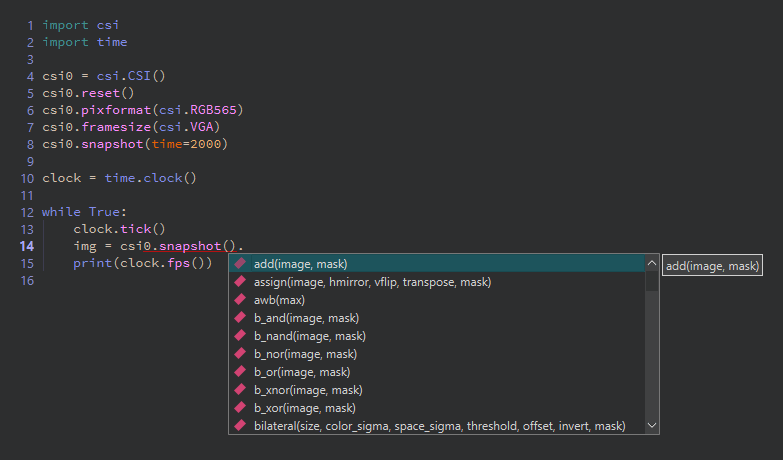
Type a dot and the completion list opens – every entry with its full call signature.#
13.1.1.4. GitHub Copilot#
The editor supports GitHub Copilot for inline AI code suggestions. It does nothing until you sign in with a GitHub account that has a Copilot subscription, under the Copilot section of the preferences dialog. To turn it off again, sign out or untick its enable box.
13.1.1.5. Beyond Python files#
The editor opens more than scripts. Open an image file and it appears in an image viewer with zoom and fit-to-screen controls – handy for inspecting saved snapshots and templates without leaving the IDE. Open a binary file and it appears in a hex editor, useful for a quick look inside a recording or a descriptor file.
13.1.1.6. Editing outside the IDE#
Scripts are plain .py files, and nothing requires you to edit them in the IDE. When a file open in the editor changes on disk – saved from another editor, or pulled from version control – the IDE notices as soon as its window regains focus and reloads the file. It asks first only if the copy in the editor has unsaved changes of its own.