
 OpenMV MicroPython
 13.8.5. Deploying to the camera#
The trained model lives on Roboflow’s servers. Getting it onto the camera takes one download, then the same steps as loading any other model.
13.8.5.1. Downloading the weights#
On the Deployments page, choose Deploy to 3rd Party Platforms and select the OpenMV tab. It downloads the model’s weights as a single integer-quantized .tflite file, named after the project and version – the int8 format the camera’s TFLite engine runs.
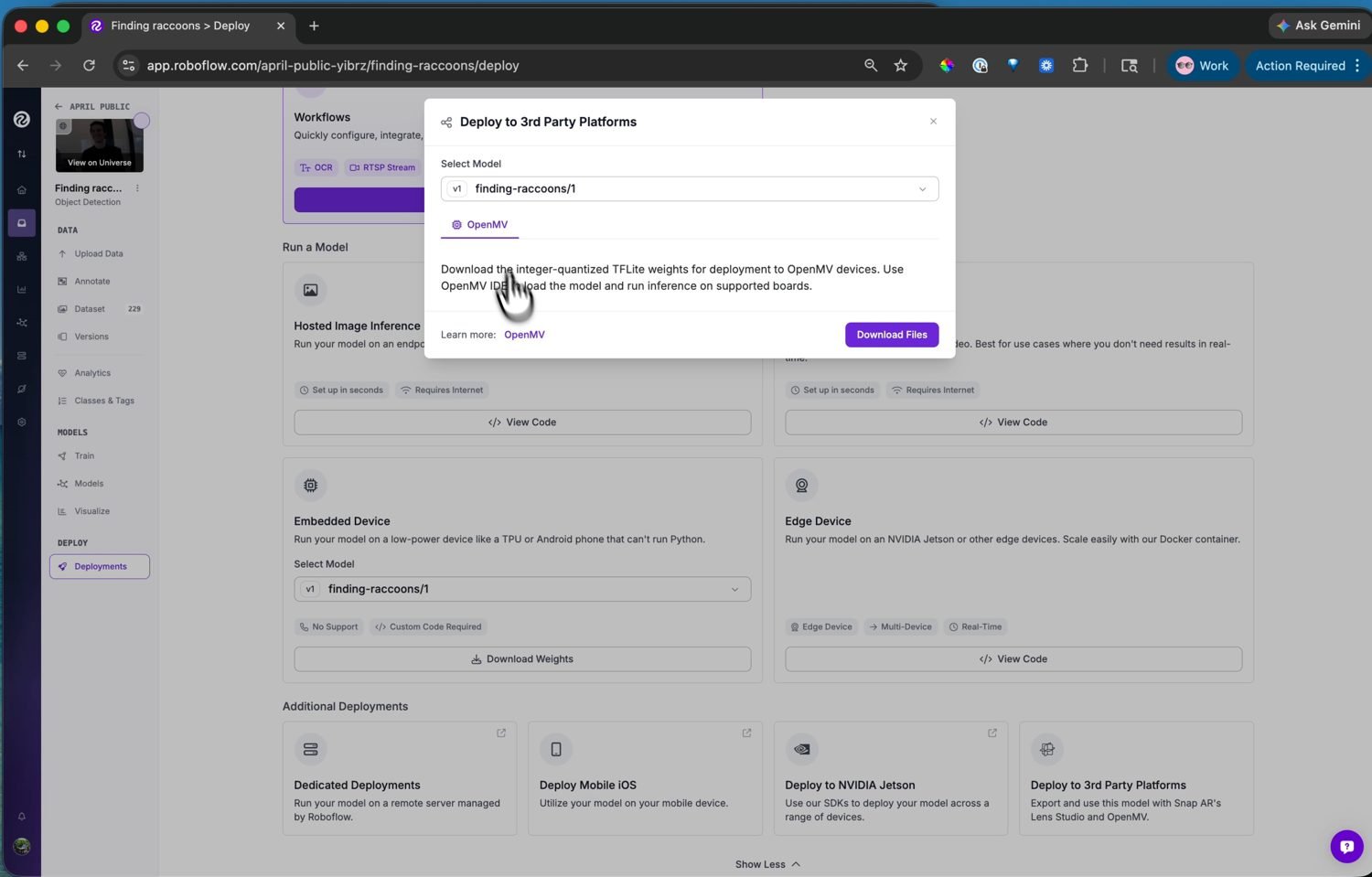
The OpenMV deploy target – Download Files saves the camera-ready .tflite weights.#
13.8.5.2. Loading it on the camera#
Add the .tflite file to the camera with the IDE’s ROMFS editor, which converts it for the board’s NPU when the board has one, then load it in a script with ml.Model. Models also run from the camera’s flash drive – copy the file over and point ml.Model at the path – but ROMFS is the better home: models there execute straight from flash without a RAM copy.
A detection model’s raw output is a tensor of box coordinates and class scores that still needs decoding. Roboflow’s YOLO-family detectors decode with the post-processors the camera ships in ml.postprocessing.ultralytics, so a few lines wire the model to its decoder and you have boxes and labels.
See also
The machine learning chapter for running models with the ml module – loading, the inference pipeline, and the walkthrough of decoding YOLO-family output.